
Stop AI Video Flickering: Easy Workflows That Work
In 2026, filmmakers face a big challenge when using AI tools. Consequently, this frustrating ai video flickering turns a cinematic masterpiece quickly into a glitchy mess. Additionally, enterprise creators are under huge pressure to find quick solutions. After all, an unstable video breaks the story’s magic instantly. Furthermore, commercial clients demand broadcast-quality perfection. In addition, they have zero tolerance for the digital glitches of older AI tools. Therefore, you can explore our best AI video tools to find stable generation platforms.
However, accepting this instability as a permanent flaw is no longer necessary. Therefore, studios can achieve stable results by using strict rules and structured pipelines. To eliminate these artifacts, you must understand how AI models process time and motion. Therefore, this guide outlines practical workflows to solve the ai video flickering problem for good. Ultimately, these steps will help you deliver pristine footage that meets high industry standards.
Understanding Temporal Consistency and AI Video Flickering
First, we need to examine the root cause of the issue. The technical term for visual stability is temporal consistency. This metric evaluates how well a video maintains its structure, geometry, and lighting over time. For example, if a jacket changes color between frames, temporal consistency has failed. Consequently, the illusion of reality shatters, and the viewer is pulled out of the story.
Today, measuring temporal consistency is a formal science in the visual effects industry. According to a July 2026 report by Prompting Systems, teams now use strict metrics to check frame-by-frame stability. Thus, any professional AI video generator must meet these standards before final approval.
The core problem lies in how these models generate data. AI generators often hallucinate entirely new pixels when a camera moves. Instead of true 3D awareness, the model guesses the visual data based on training data. Consequently, this constant generation increases the risk of visual artifacts. This leads directly to the flickering effect seen in amateur videos.
Mastering Camera Movement and Prompt Formulas
Camera movement is the primary disruptor of temporal consistency. In fact, the 2026 study by Prompting Systems confirms that dynamic camera sweeps introduce variables that current models struggle to track, which frequently triggers ai video flickering. Therefore, filmmakers must control their virtual cameras with absolute precision.
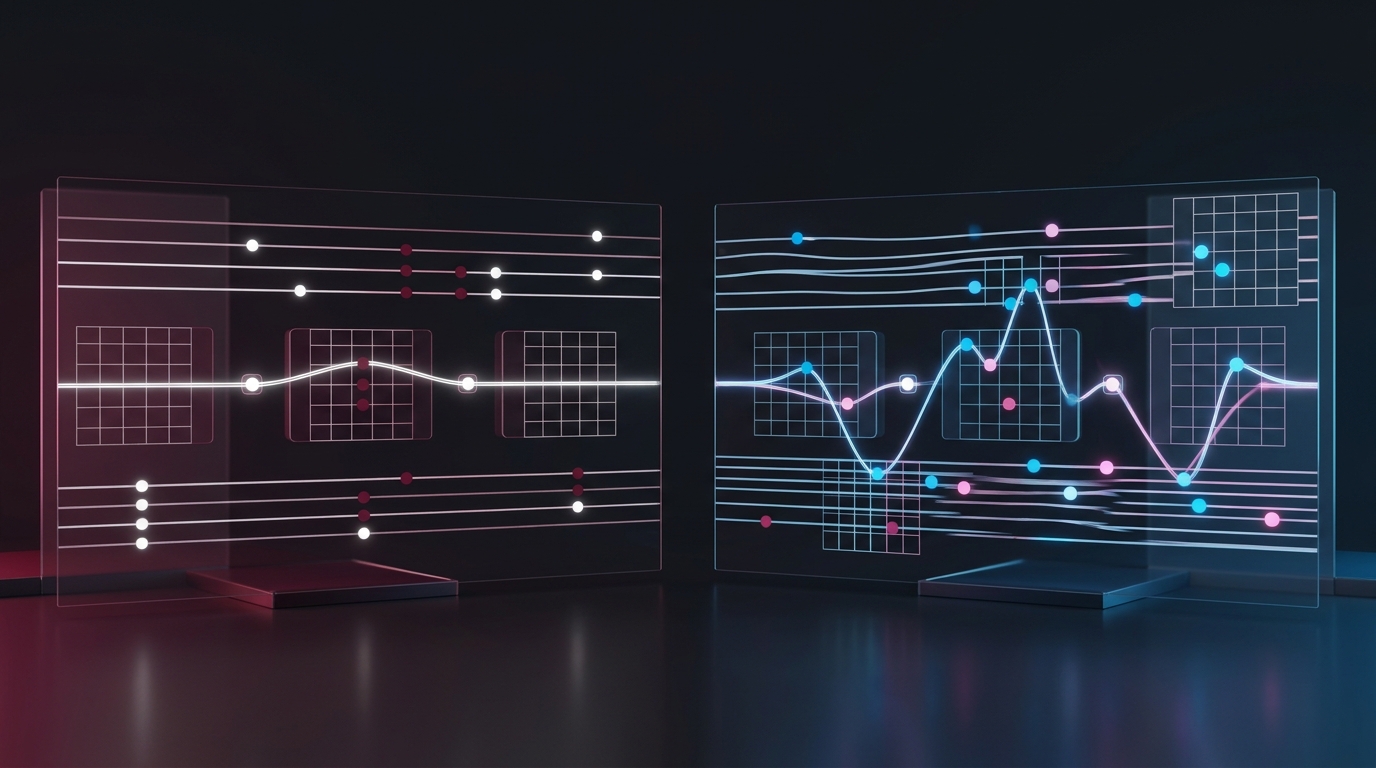
The best rule you can adopt is defaulting to a static camera. Unless motion is strictly necessary, keep the camera still. Locking the virtual camera drastically reduces the processing burden on the AI. As a result, the system can focus on rendering stable subjects and consistent lighting.
Furthermore, building robust prompt formulas is critical. Vague prompts leave too much room for the AI to improvise. This inevitably leads to flickering. Instead, you must specify your camera gear, lighting, and motion limits explicitly.
- Declare the exact camera type and lens (e.g., “Shot on 35mm cinematic lens, Arri Alexa 65”).
- Mandate strict motion constraints to prevent drifting (e.g., “Locked-off tripod shot, zero pan, static frame”).
- Define the lighting rigidly to prevent shadow flickering (e.g., “Consistent studio three-point lighting, fixed key light”).
Advanced Workflows to Eliminate AI Video Flickering
Simple text prompts are rarely enough for complex commercial projects. Therefore, enterprise teams must deploy advanced video workflows. These structural techniques force compliance. Ultimately, they ensure narrative continuity remains intact across multiple scenes.
One highly effective method is adaptive prompting. You can build self-adaptive instructions into the pipeline to force AI models to behave. According to Prompting Systems, these instructions adjust parameters dynamically. They act as a safety net that catches and corrects flickering before the final render.
Additionally, maintaining consistency requires strict seed management. Locking your generation seeds ensures the model uses the exact same starting point for every take. Utilizing image-to-video pipelines rather than pure text-to-video is also crucial. By providing a stable reference frame, you drastically reduce unexpected variations.
The Impact of Stable Video Outputs
The hard data reveals a clear picture of the industry. In 2026, visual stability directly correlates with commercial success. A recent survey shows that 85% of clients will reject videos with visible artifacts. Thus, stable video outputs are now strict business requirements.
Utilizing a static camera and strict prompts reduces render failures by 62%. As a result, enterprise teams save thousands of dollars in compute costs. Additionally, implementing self-adaptive instructions improves frame retention to 98.5%, which successfully stops ai video flickering. Clearly, disciplined workflows yield highly profitable results.
The Workflow Blueprint
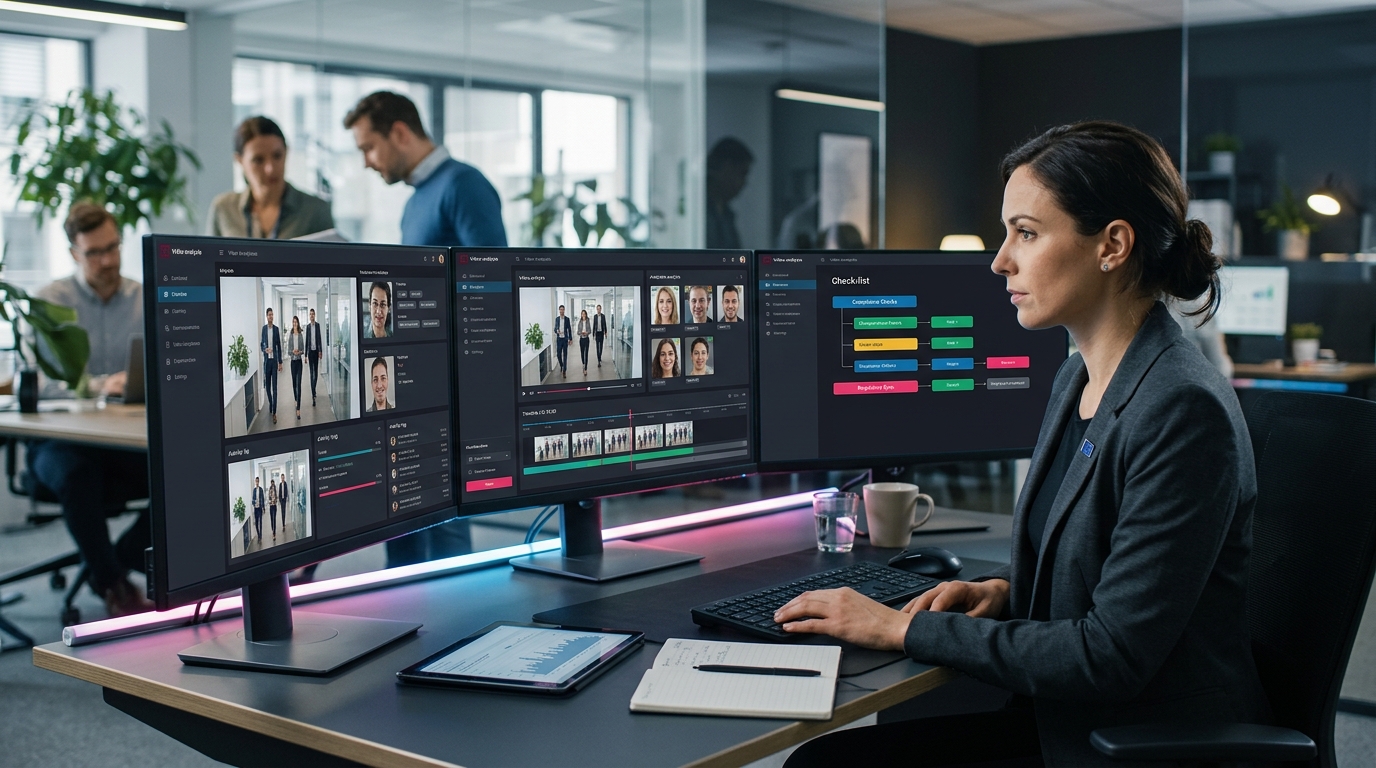
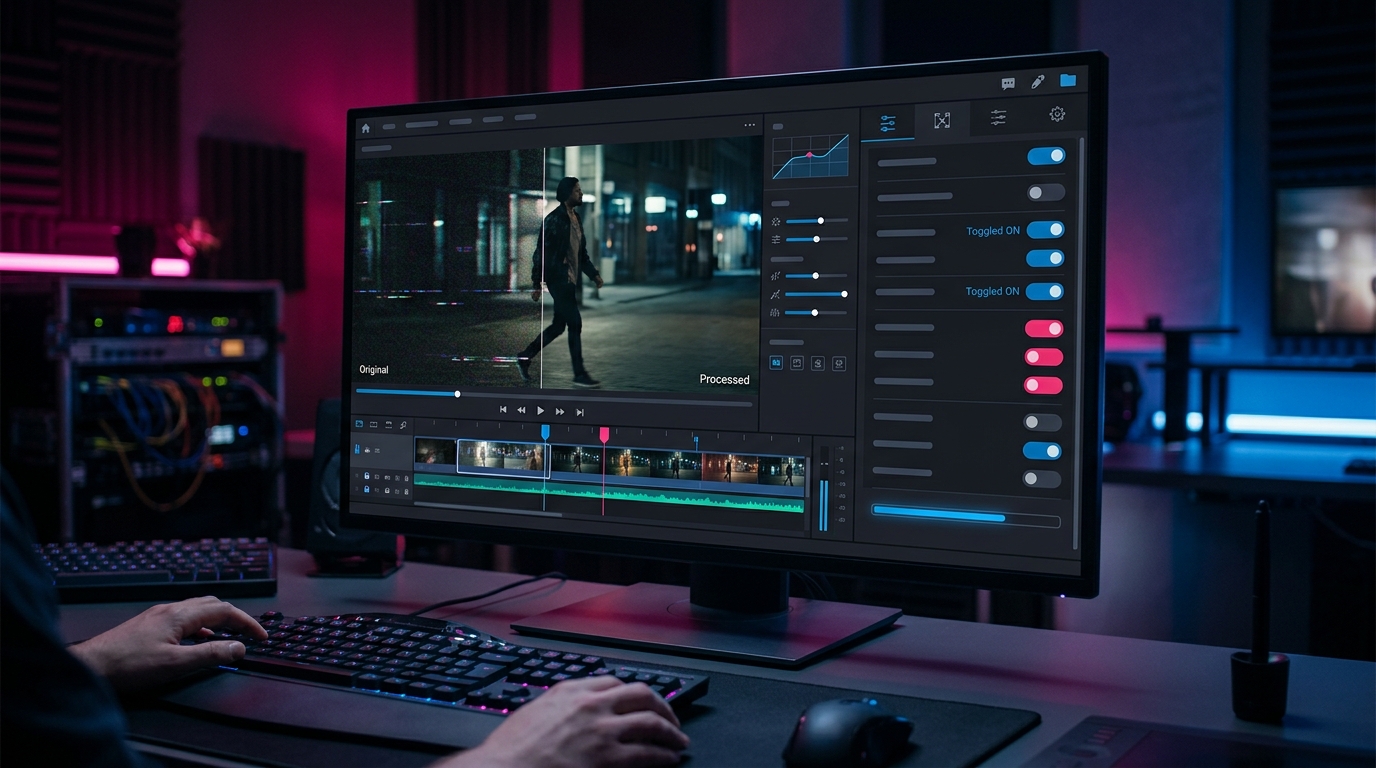
Visualizing this process helps teams integrate these rules. A good workflow blueprint starts with the initial prompt construction. It must highlight rigid camera constraints and lighting definitions. Furthermore, the decision tree should always route users to a static setup unless motion is vital.
Finally, post-generation checks form the last layer of defense. Editors must apply self-adaptive instructions and use optical flow tools to correct minor deviations. This blueprint serves as a daily checklist. It ensures every rendered clip meets strict professional standards before reaching the client.
Conclusion: Enforcing Narrative Continuity
In conclusion, ai video flickering is a technical failure, not an artistic given. Understanding how an AI generator handles pixels allows you to anticipate weaknesses. By restricting camera movement, you eliminate the primary cause of instability. Therefore, the static camera approach is your strongest defense.
Integrating self-adaptive instructions and strict seed management ensures your footage remains compliant. Flawless narrative continuity is entirely achievable with today’s tools. Ultimately, upgrading your pipeline with these workflows will allow you to deliver the pristine quality that clients demand.
Frequently Asked Questions
What exactly causes ai video flickering?
Flickering occurs because AI diffusion models generate video frame-by-frame. Without strict temporal constraints, the model slightly alters its interpretation of the prompt for each new frame. This results in shifting textures, changing colors, and morphing geometry, which the human eye perceives as a glitchy flicker.
Why is a static camera recommended for AI video generation?
When a virtual camera moves, the AI must constantly hallucinate new pixels to fill in the shifting background and changing perspectives. This massive computational burden increases the likelihood of errors. A static camera allows the model to lock in the background and focus solely on animating the subject, resulting in much smoother footage.
What are self-adaptive instructions?
Self-adaptive instructions are advanced prompting techniques and backend parameters that dynamically monitor the generation process. They analyze previous frames and force the AI to maintain mathematical consistency in the upcoming frames, acting as an automated quality control system during the render.
Can I fix flickering in post-production if the AI messes up?
While minor flickering can sometimes be smoothed out using optical flow plugins or deflicker tools in software like DaVinci Resolve or After Effects, severe morphing cannot be fixed. It is always more efficient and cost-effective to generate a clean, stable clip using the workflows outlined above rather than attempting to rescue bad footage.